
Tutorial
Install the extension — illustrated tutorial
The extension sends your downloads and the videos you watch to File Download Manager. Choose your browser and follow the numbered markers on each picture.
-
1
Step 1 of 4 · Google Chrome
Turn on Developer mode
Open the extensions page of Google Chrome (chrome://extensions/) with the blue button, then switch on “Developer mode” at the top right (marker 1).
chrome://extensions/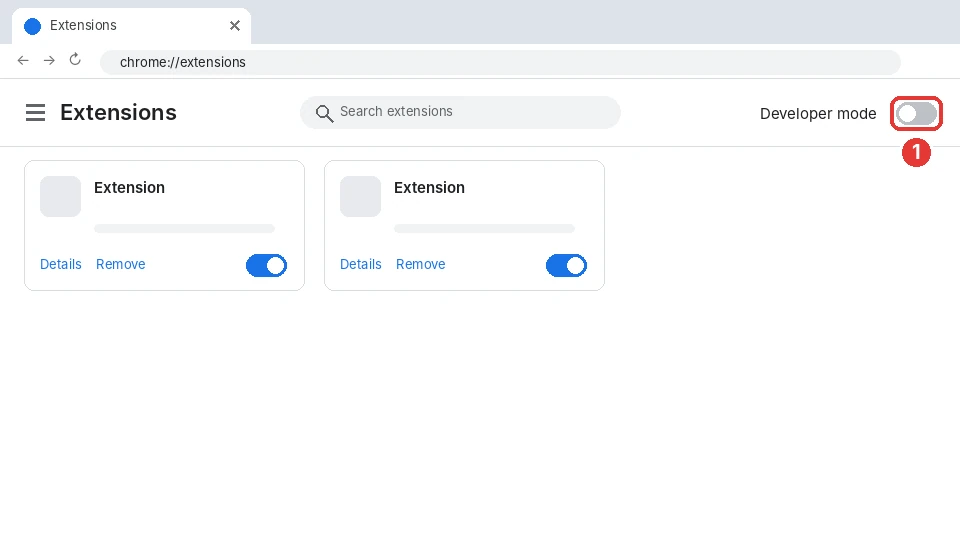
-
2
Step 2 of 4 · Google Chrome
Click “Load unpacked”
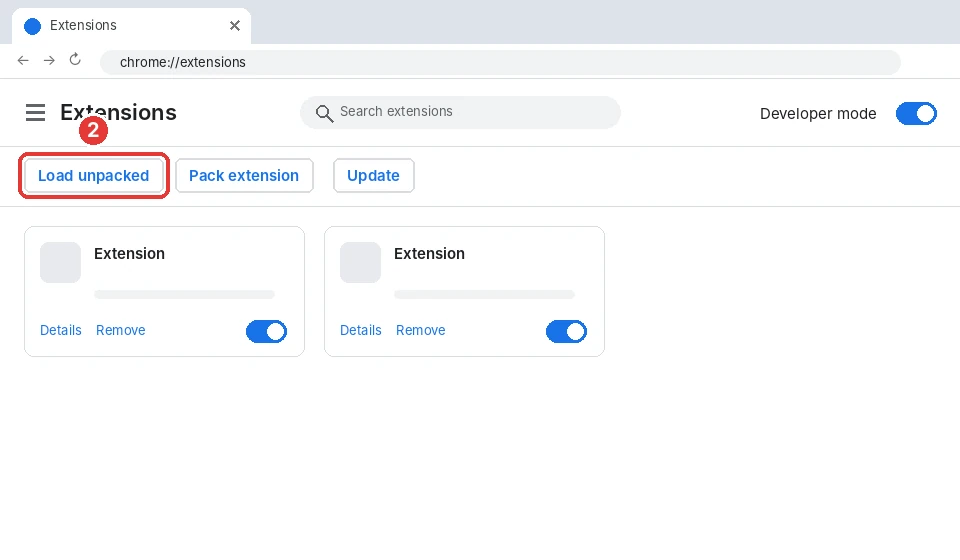
New buttons appear at the top of the page. Click “Load unpacked” (marker 2): a folder selection window opens.
-
3
Step 3 of 4 · Google Chrome
Paste the path and select the folder
Click the address bar of the window (marker 3), paste the copied path with Ctrl+V and press Enter, then click “Select Folder” (marker 4).
Path to paste (it is copied for you by the app):
%LOCALAPPDATA%\Programs\FileDownloadManager\extension\chrome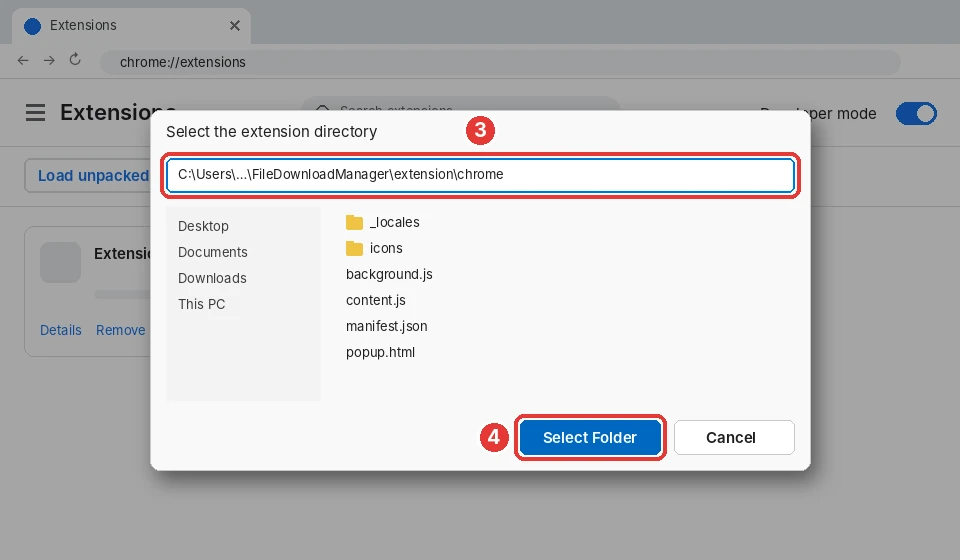
-
Step 4 of 4 · Google Chrome
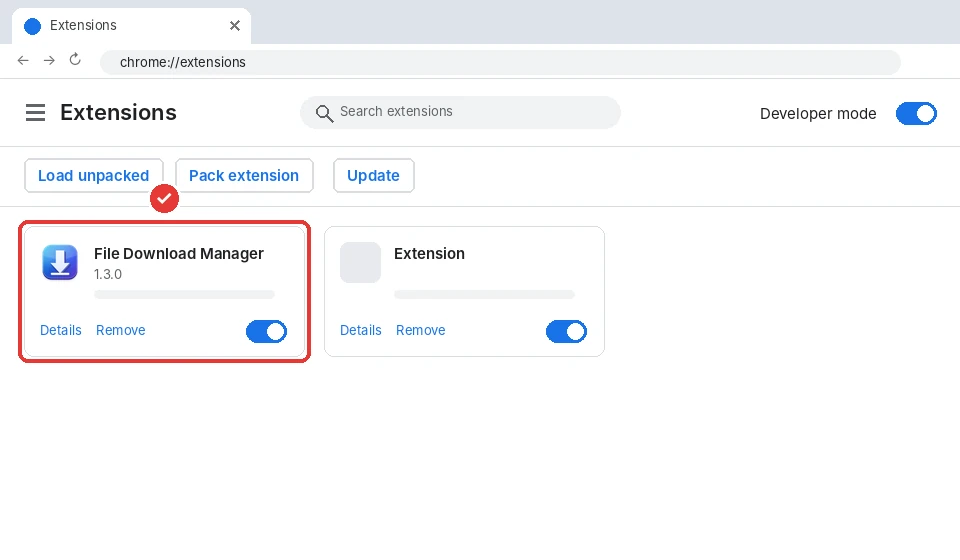
Done!
File Download Manager now appears in your extensions. Pin it to the toolbar with the puzzle icon to reach it easily. It stays installed when Google Chrome restarts.
-
1
Step 1 of 4 · Microsoft Edge
Turn on Developer mode
Open the extensions page of Microsoft Edge (edge://extensions/) with the blue button, then switch on “Developer mode” at the bottom of the left menu (marker 1).
edge://extensions/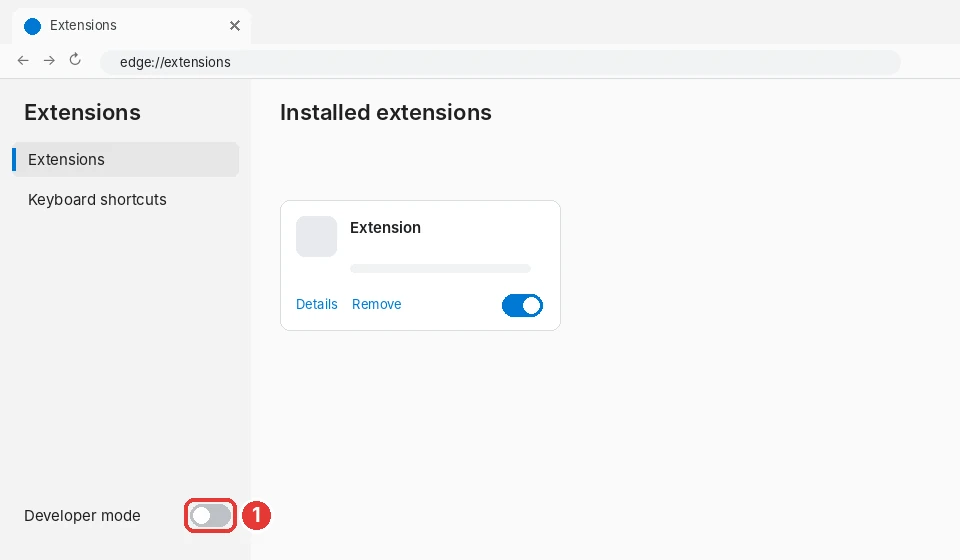
-
2
Step 2 of 4 · Microsoft Edge
Click “Load unpacked”
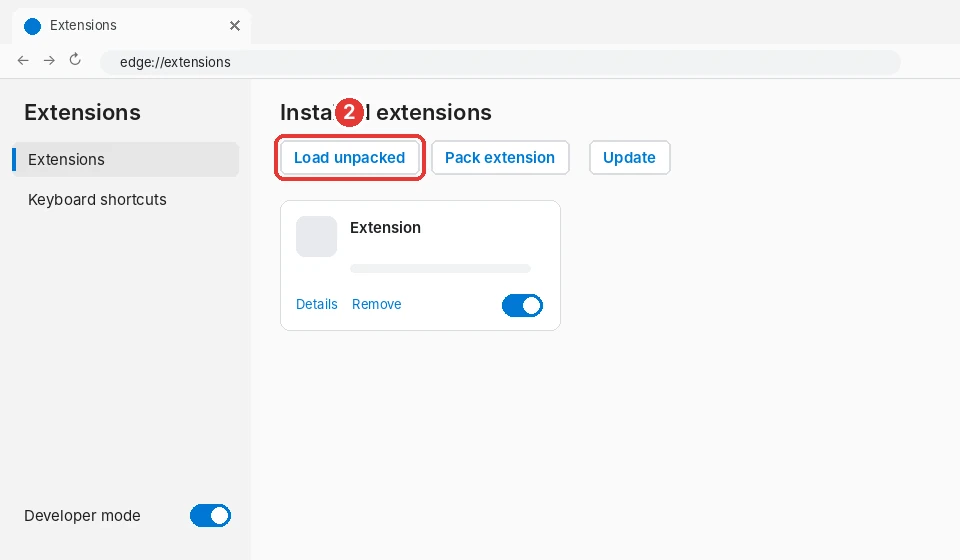
New buttons appear at the top of the page. Click “Load unpacked” (marker 2): a folder selection window opens.
-
3
Step 3 of 4 · Microsoft Edge
Paste the path and select the folder
Click the address bar of the window (marker 3), paste the copied path with Ctrl+V and press Enter, then click “Select Folder” (marker 4).
Path to paste (it is copied for you by the app):
%LOCALAPPDATA%\Programs\FileDownloadManager\extension\chrome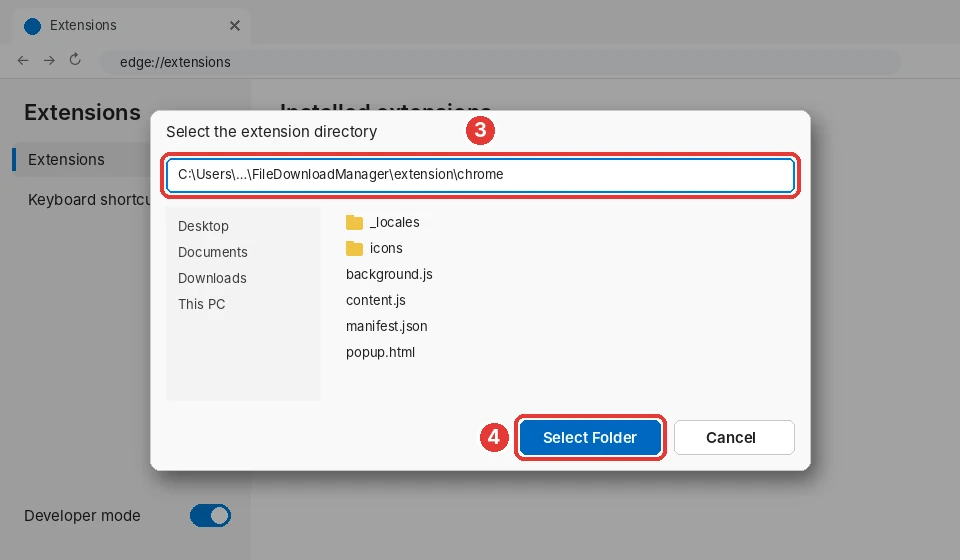
-
Step 4 of 4 · Microsoft Edge
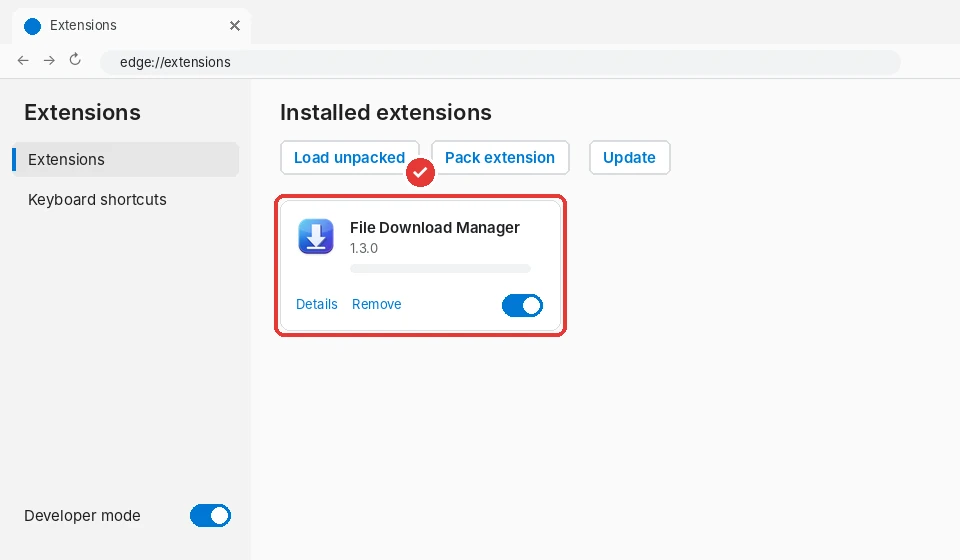
Done!
File Download Manager now appears in your extensions. Pin it to the toolbar with the puzzle icon to reach it easily. It stays installed when Microsoft Edge restarts.
-
1
Step 1 of 4 · Brave
Turn on Developer mode
Open the extensions page of Brave (brave://extensions/) with the blue button, then switch on “Developer mode” at the top right (marker 1).
brave://extensions/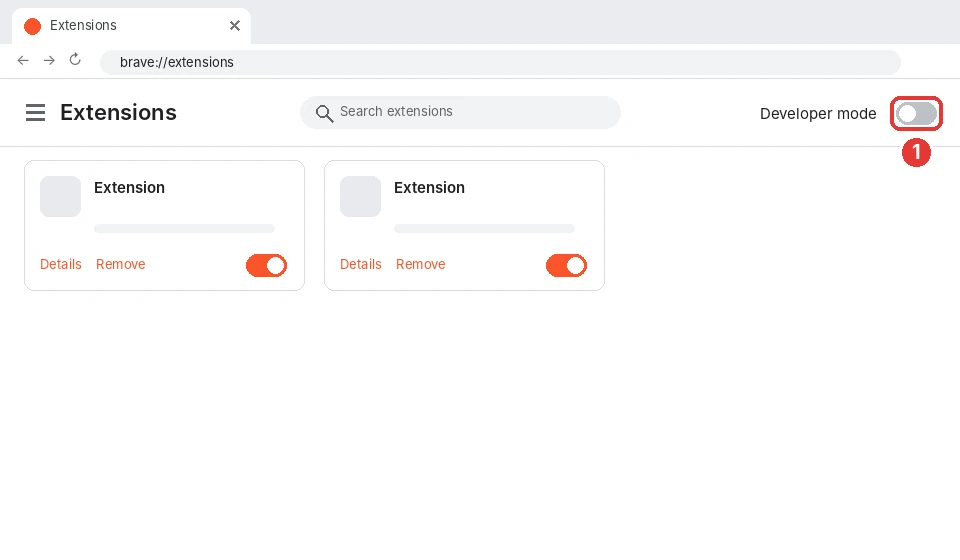
-
2
Step 2 of 4 · Brave
Click “Load unpacked”
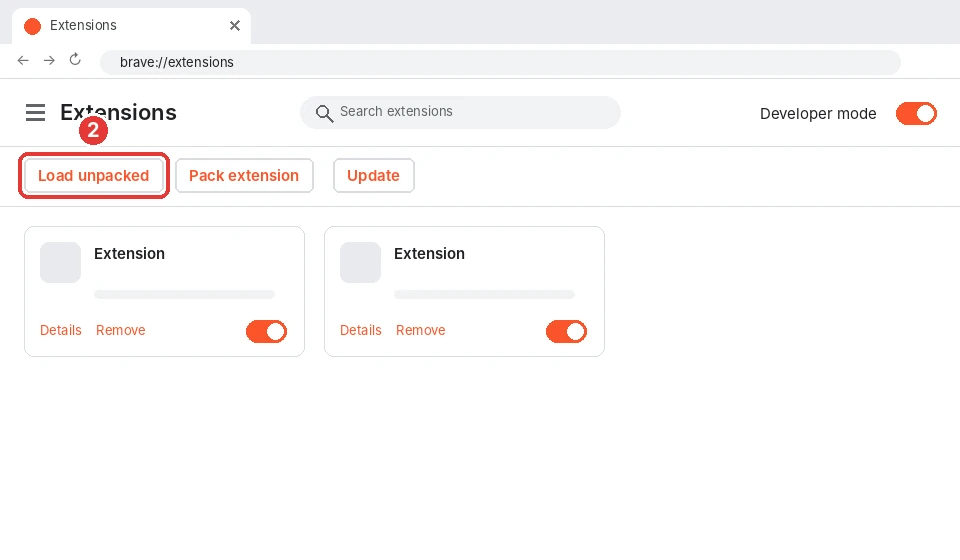
New buttons appear at the top of the page. Click “Load unpacked” (marker 2): a folder selection window opens.
-
3
Step 3 of 4 · Brave
Paste the path and select the folder
Click the address bar of the window (marker 3), paste the copied path with Ctrl+V and press Enter, then click “Select Folder” (marker 4).
Path to paste (it is copied for you by the app):
%LOCALAPPDATA%\Programs\FileDownloadManager\extension\chrome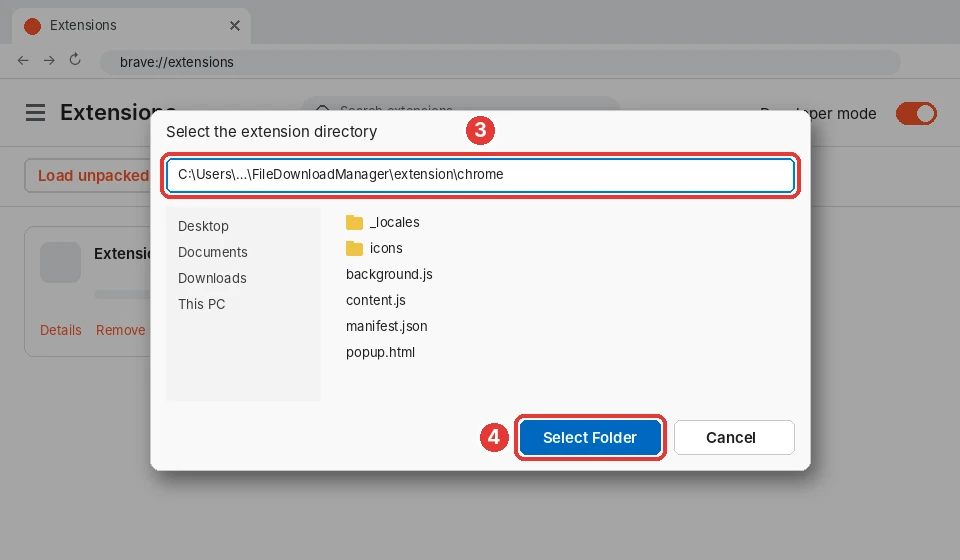
-
Step 4 of 4 · Brave
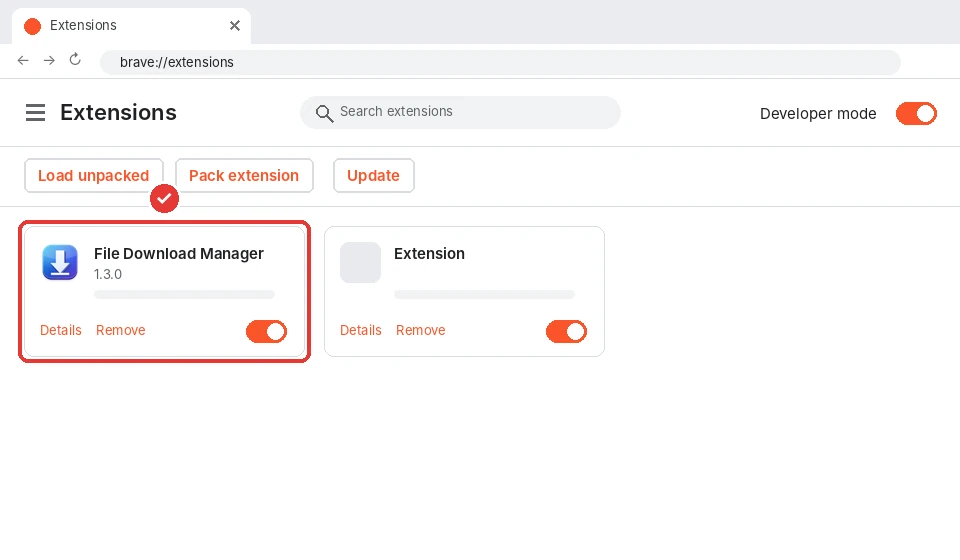
Done!
File Download Manager now appears in your extensions. Pin it to the toolbar with the puzzle icon to reach it easily. It stays installed when Brave restarts.
-
1
Step 1 of 4 · Opera
Turn on Developer mode
Open the extensions page of Opera (opera://extensions/) with the blue button, then switch on “Developer mode” at the top right (marker 1).
opera://extensions/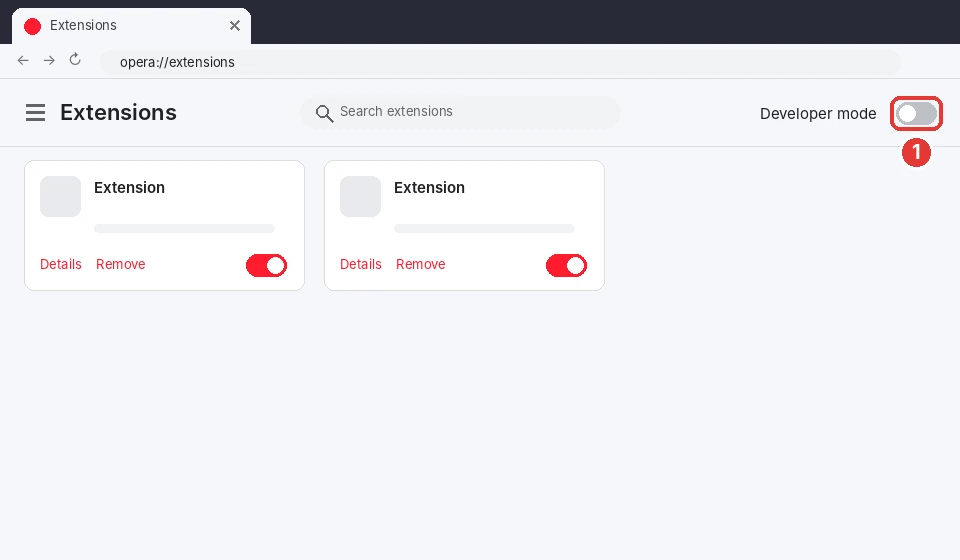
-
2
Step 2 of 4 · Opera
Click “Load unpacked”
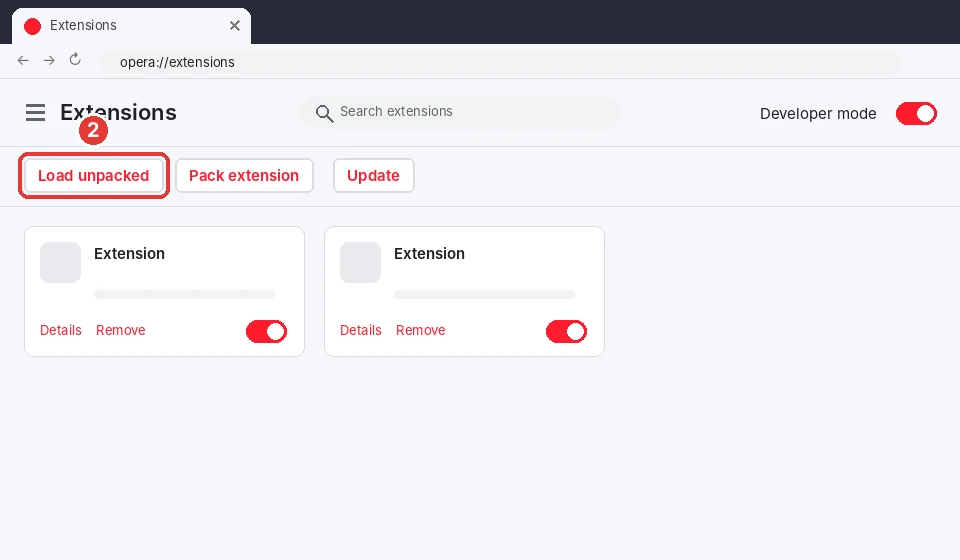
New buttons appear at the top of the page. Click “Load unpacked” (marker 2): a folder selection window opens.
-
3
Step 3 of 4 · Opera
Paste the path and select the folder
Click the address bar of the window (marker 3), paste the copied path with Ctrl+V and press Enter, then click “Select Folder” (marker 4).
Path to paste (it is copied for you by the app):
%LOCALAPPDATA%\Programs\FileDownloadManager\extension\chrome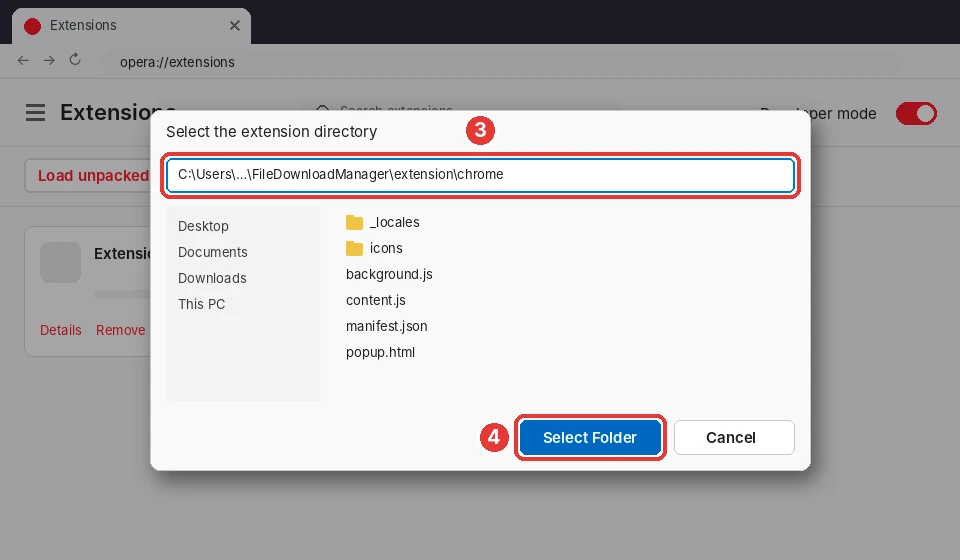
-
Step 4 of 4 · Opera
Done!
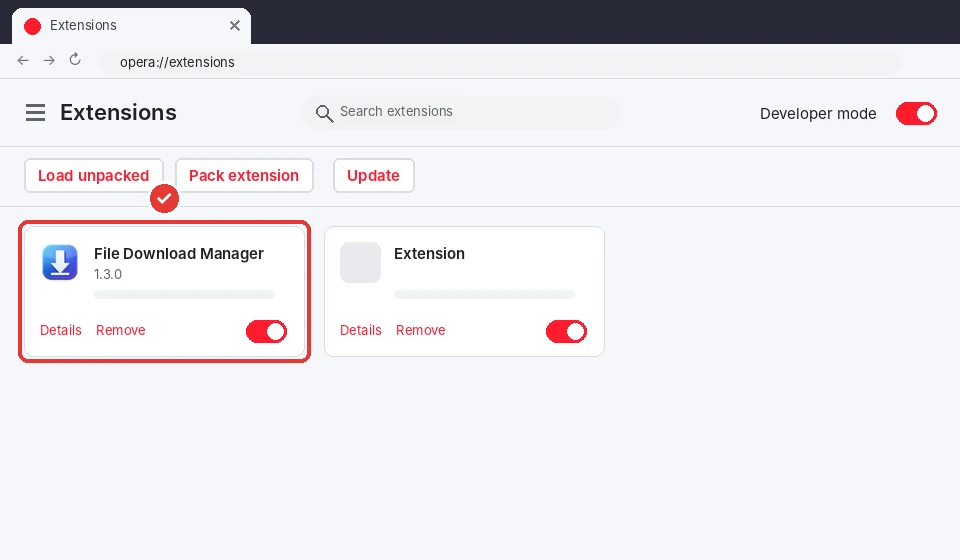
File Download Manager now appears in your extensions. Pin it to the toolbar with the puzzle icon to reach it easily. It stays installed when Opera restarts.
-
1
Step 1 of 4 · Vivaldi
Turn on Developer mode
Open the extensions page of Vivaldi (vivaldi://extensions/) with the blue button, then switch on “Developer mode” at the top right (marker 1).
vivaldi://extensions/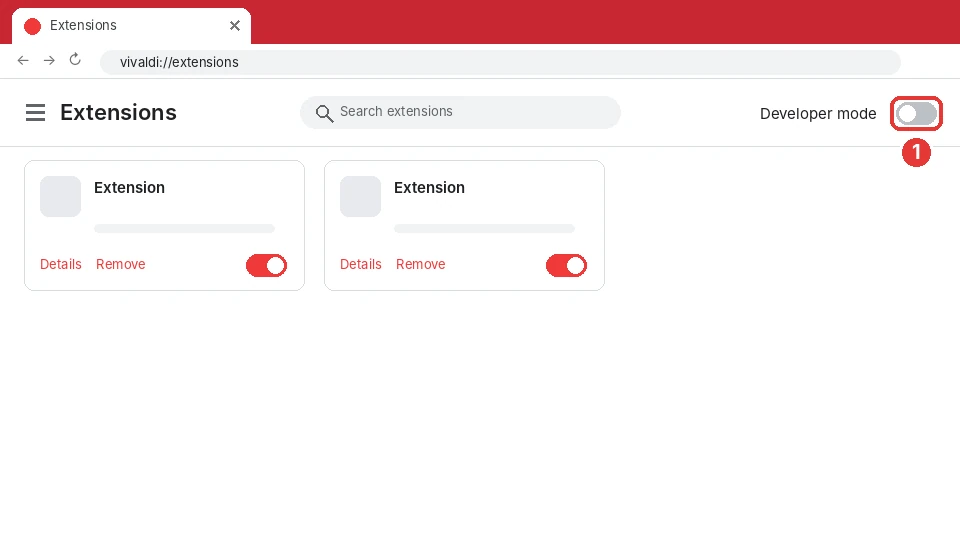
-
2
Step 2 of 4 · Vivaldi
Click “Load unpacked”
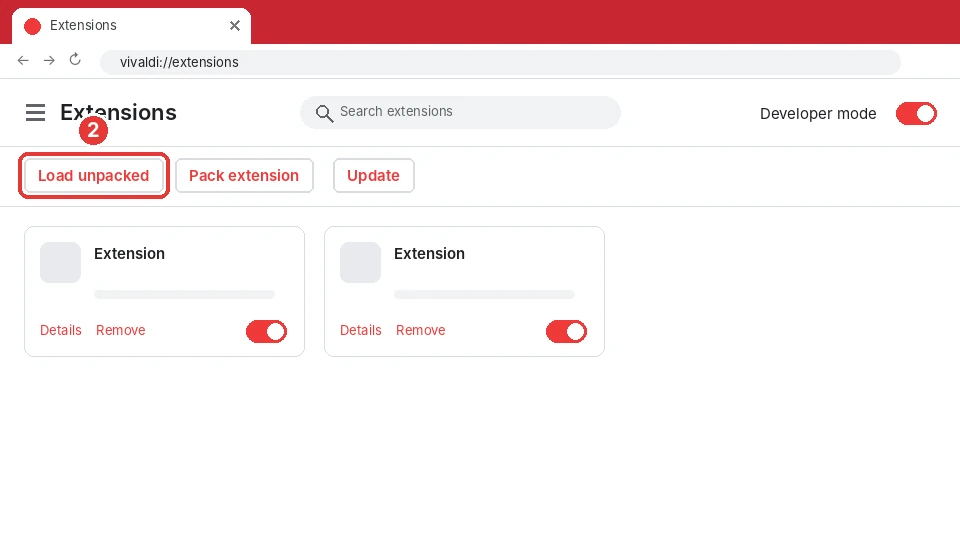
New buttons appear at the top of the page. Click “Load unpacked” (marker 2): a folder selection window opens.
-
3
Step 3 of 4 · Vivaldi
Paste the path and select the folder
Click the address bar of the window (marker 3), paste the copied path with Ctrl+V and press Enter, then click “Select Folder” (marker 4).
Path to paste (it is copied for you by the app):
%LOCALAPPDATA%\Programs\FileDownloadManager\extension\chrome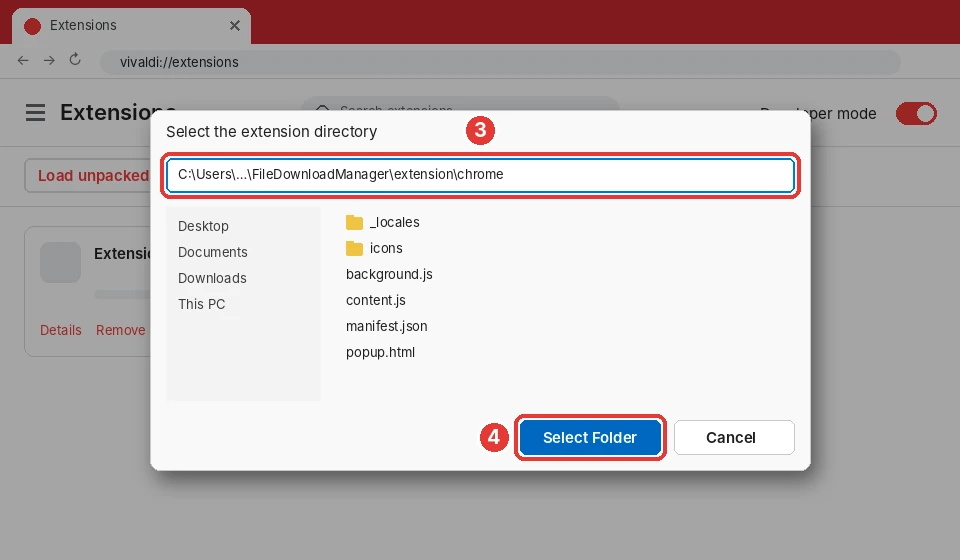
-
Step 4 of 4 · Vivaldi
Done!
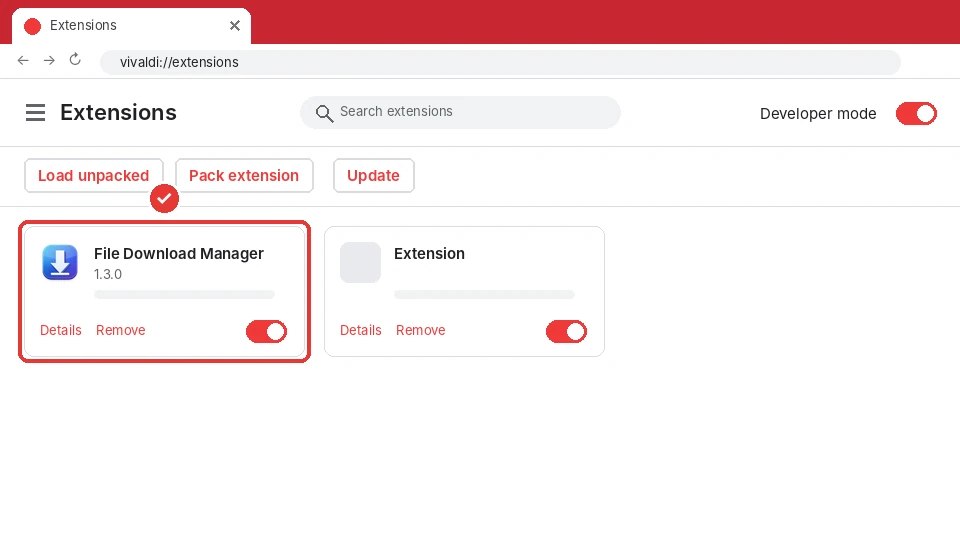
File Download Manager now appears in your extensions. Pin it to the toolbar with the puzzle icon to reach it easily. It stays installed when Vivaldi restarts.
-
1
Step 1 of 3 · Mozilla Firefox
Load a temporary add-on
Open the debugging page (about:debugging#/runtime/this-firefox) with the blue button, then click “Load Temporary Add-on…” (marker 1).
about:debugging#/runtime/this-firefox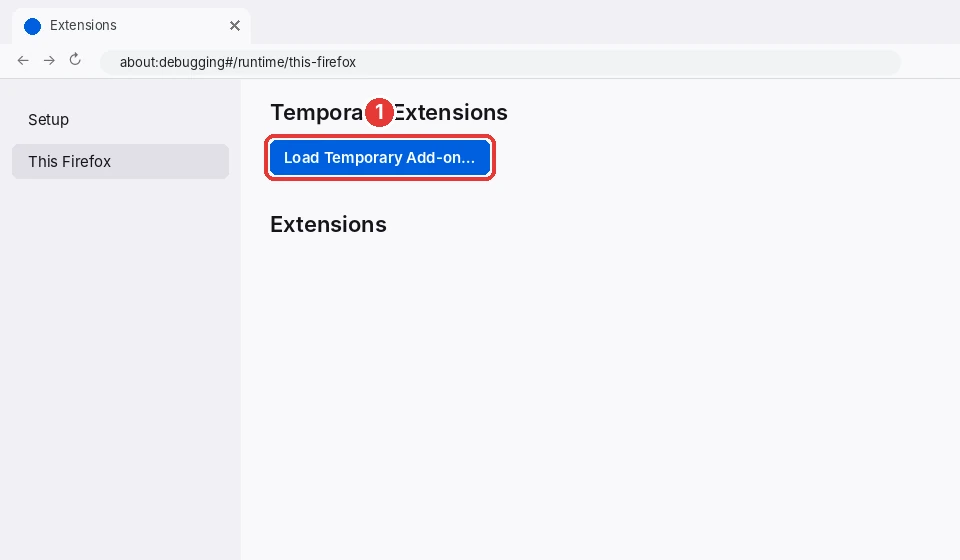
-
2
Step 2 of 3 · Mozilla Firefox
Paste the path of manifest.json
Paste the copied path in the “File name” box (marker 2) with Ctrl+V, then click “Open” (marker 3).
Path to paste (it is copied for you by the app):
%LOCALAPPDATA%\Programs\FileDownloadManager\extension\firefox\manifest.json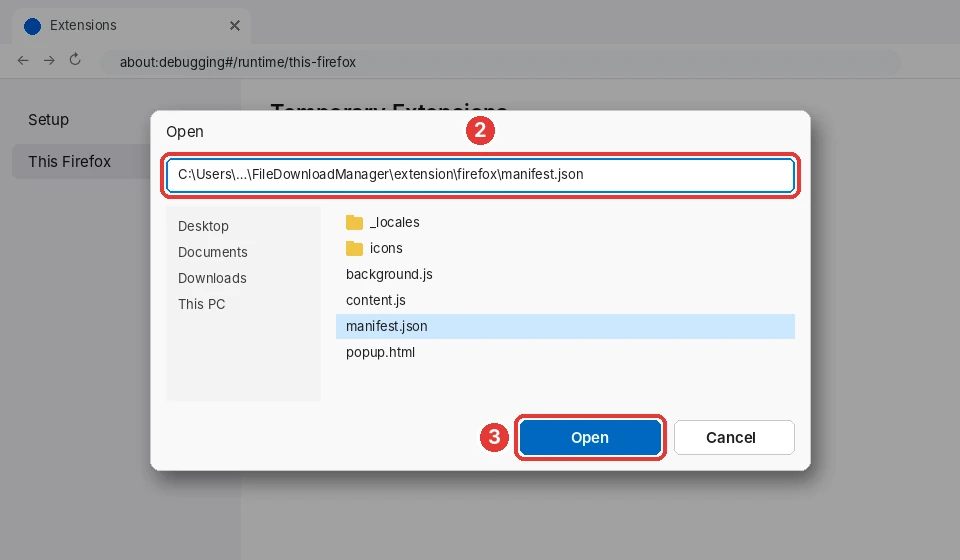
-
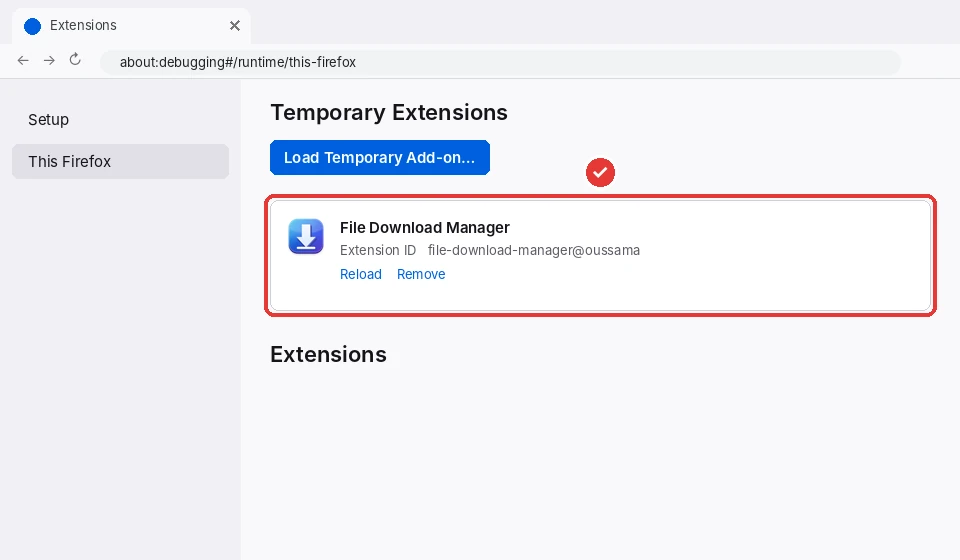
Step 3 of 3 · Mozilla Firefox
Done!
File Download Manager is loaded. Firefox removes temporary add-ons when it closes: repeat these steps after a restart, or install a signed version of the extension.
Tip: in the app, the Tutorial tab opens the right page of your browser and copies the folder path for you.
You don't have the app yet?
Free forever. No account, no ads, no bundled software.